


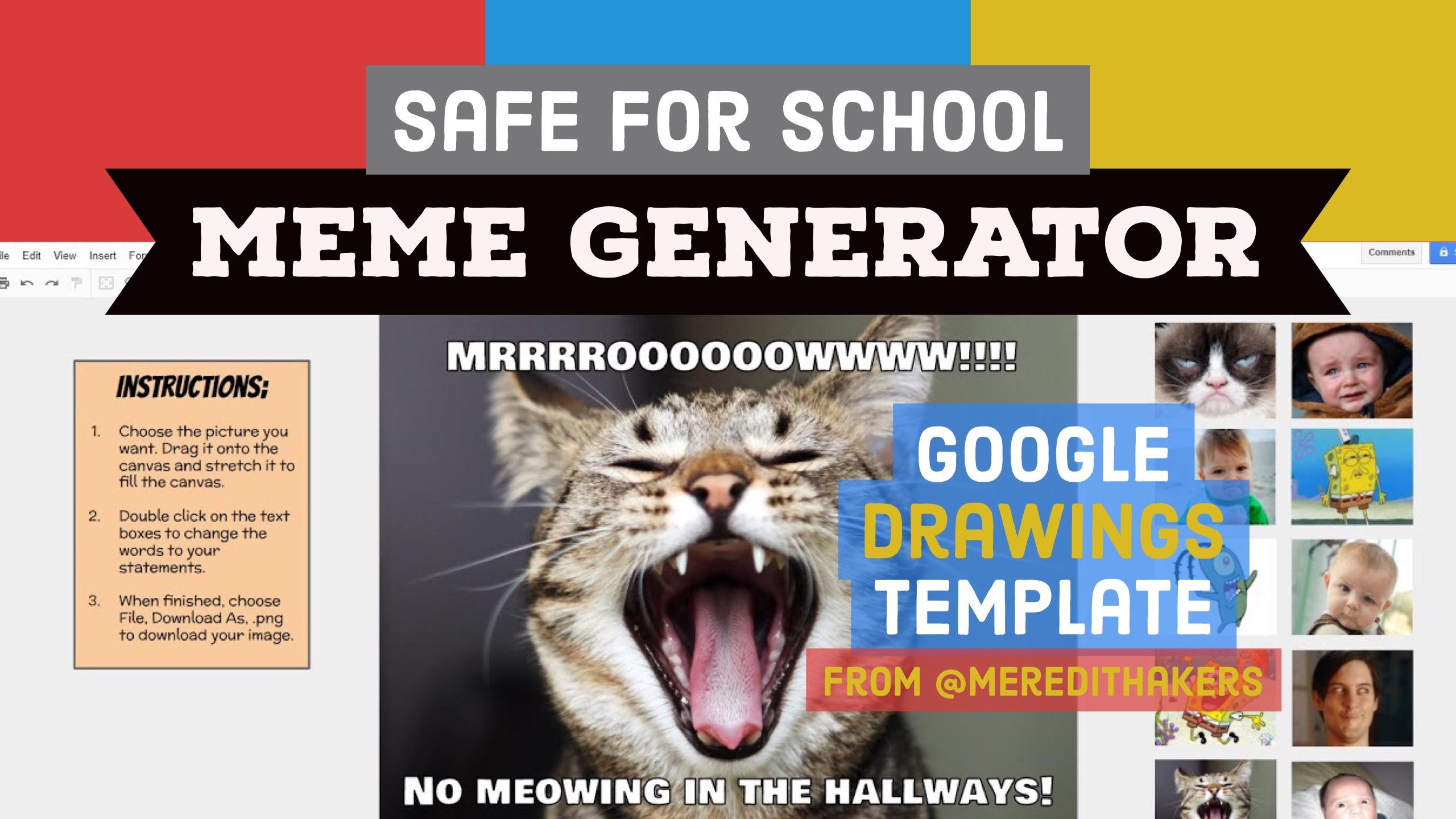
One of the awesome teachers I have the privilege of working with at Ault, Nicole Donaldson @mrsdonaldson5th , who teaches 5th grade Language Arts, told me about a class meeting activity she recently had her students complete. Instead of standing in the front of the room and going over school rules again, she gave students the assignment to create a meme (you know, those hilarious pictures you see on the internet with white text at the top and bottom) which exemplifies or explains a school rule in table groups using one safe-for-school (but still fun) image she selected. While each table had the same grumpy cat face, they all selected different school expectations to reinforce for their classmates in this super fun, silly, and engaging assignment.
When she told me about the assignment, I immediately knew I was in love!
The assignment has so many strengths:
- Students use technology to CREATE
- Students COLLABORATE
- Student have FUN - with memes
- SAFE - not out on meme generator websites which can sometimes have vulgar or offensive words or images
- And best of all - the assignment had STUDENTS TEACHING EACH OTHER about the concept (here, school rules - but potential for ANY topic)
So… I knew I had to steal this amazing idea and create a safe-for-school meme generator template that gives students choices of safe for school images (while still giving the awesome Nicole Donaldson all the kudos and credit she is due for the creative and innovative idea - thank you, Nicole, for sharing and collaborating with me)!
So here’s what I came up with:
On this template, I’ve set up word art text boxes for the students, instructions off the canvas on the left side of the screen, and numerous image choices off of the canvas on the right side of the screen. Remember, in Google Drawings, anything that is off the canvas WILL NOT appear when you download your completed image! Sweet!
To use this template:
- Click here to make a copy of the template.
- Select the image you want to use.
- Click and drag it onto the canvas.
- Click a corner and drag it to enlarge the image so it fills the entire canvas.
- Double click on each text box to change the text to your own.
- Choose File, Download as, PNG to download a copy of the graphic on your canvas!
To hear me explain more about this template and get more easy student collaboration ideas, check out my presentation for CFISD’s Virtual Tech-a-Thon which includes a link to my presentation slide deck, lots of students collaboration resources, and a link to actually hear and see the recording of me presenting!
